🌐 Revit Add-in

Real-world coordinates
inside Revit.

Survey Coordinates automatically captures and updates Northing & Easting values on your Site and Planting elements — so you can schedule, tag, and relocate them with survey-grade precision.

⬇  Free 30-day trial · No credit card · Revit 2025–2026
Survey Coordinates — Revit 2025
Site & Planting Elements
MH-01  Manhole N 690390.1210   E 413536.8840 Site
IC-04  Inspection Chamber N 690382.4450   E 413542.1190 Site
GT-11  Gully Trap N 690375.6620   E 413549.3300 Site
TR-07  Date Palm N 690401.7830   E 413561.5040 Planting
SH-03  Bougainvillea N 690395.2240   E 413557.9120 Planting
✓  1 element relocated · 4 already up to date
2
Revit categories supported
2
Revit versions (2025–2026)
1-click
Coordinate sync

Everything you need for
geo-referenced BIM

Two focused commands that handle the full coordinate workflow — from capturing positions to relocating elements.

📍

Capture Coordinates

Reads each element's real-world location using the project survey point and writes Northing & Easting as schedulable shared parameters.

🔄

Relocate from Params

Edit a coordinate value in a schedule or properties panel — then run one command to physically move that element to its new position.

🛡️

Smart Change Detection

Only elements whose coordinates have actually been edited get moved. Unchanged elements are skipped, preventing accidental mass-repositioning.

🌿

Site & Planting

Works across both Revit categories — PHE assets (manholes, gullies, inspection chambers) and landscape elements (trees, shrubs, ground cover).

📐

Project Units Aware

Coordinates are expressed in the project's active length unit — metres, feet, or millimetres — with no manual conversion required.

🔍

Post-Move Visibility

After relocating, moved elements are automatically selected and highlighted in the view so you can immediately verify their new positions.

Three steps, start to finish

A simple, repeatable process that fits naturally into your existing Revit workflow.

01

Set up shared parameters

Add the provided "Northing" and "Easting" shared parameters to the Site and Planting categories in your project template.

02

Capture coordinates

Run Update Parameter Values. The add-in reads every element's position and writes its survey coordinates instantly.

03

Relocate from a schedule

Edit a Northing or Easting value in any Revit schedule or properties panel, then run Update Element Locations to move it.

What you need

Software

  • Autodesk Revit 2025 or 2026
  • Windows 10 / 11 (64-bit)
  • .NET 8 Runtime (bundled with Revit 2025+)

Project setup

  • Survey point correctly positioned in the model
  • "Northing" + "Easting" shared parameters applied to Site category
  • "Northing" + "Easting" shared parameters applied to Planting category
  • PHE / Planting families assigned to correct Revit categories

See it in action

Two focused commands — one to capture coordinates, one to move elements to match.
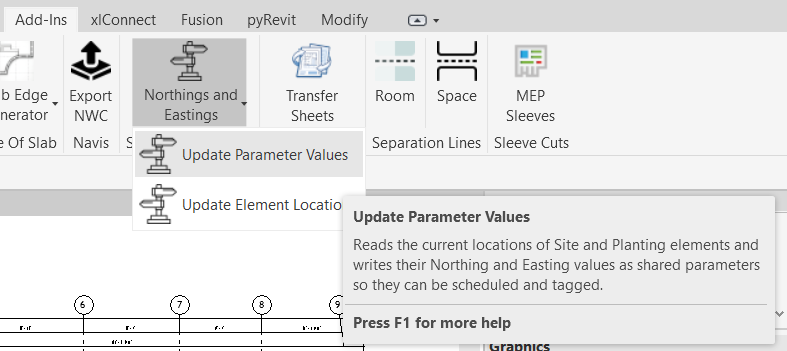
Northings and Eastings ribbon — Update Parameter Values
The Update Parameter Values command reads each element's location and writes its real-world Northing and Easting to the shared parameters.
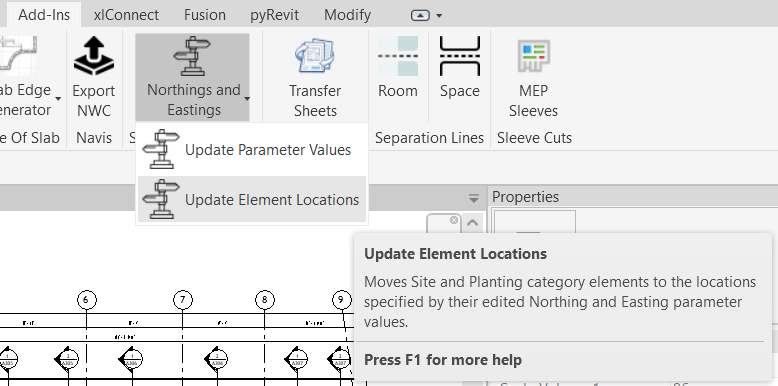
Northings and Eastings ribbon — Update Element Locations
The Update Element Locations command moves elements to the coordinates stored in their Northing and Easting parameters.
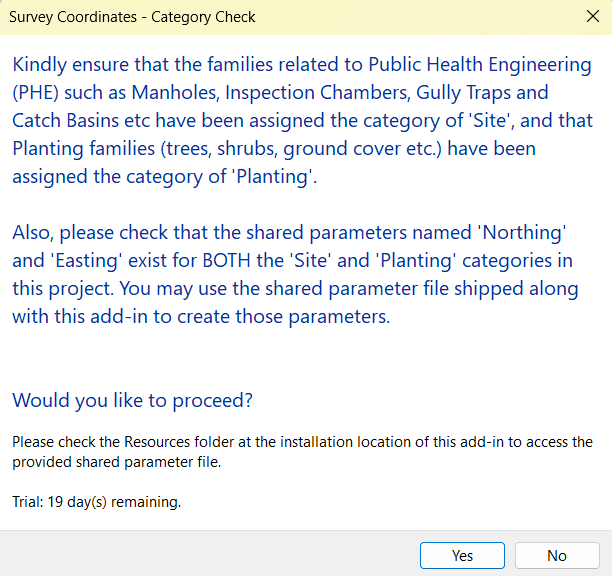
Category Check preflight dialog
A preflight dialog confirms categories and shared parameters are in place before any changes are made.
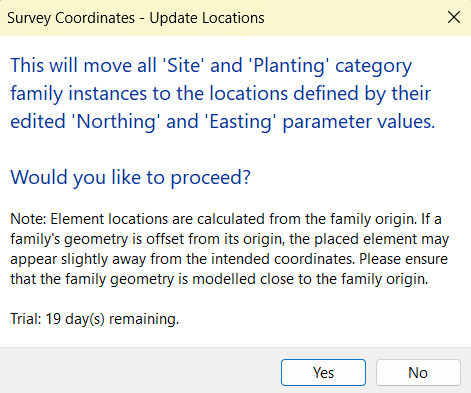
Update Locations confirmation dialog
The Update Locations command warns about family origin offsets — so nothing moves without the user being informed first.

Demo video

Try free. Buy when you're ready.

Start with a full-featured 30-day trial — no credit card, no email required. Upgrade to a permanent license whenever you like.

Free Trial

Survey Coordinates for Revit

30 days · No credit card needed

Free
for 30 days
  • All features unlocked for 30 days
  • Revit 2025 and 2026
  • Shared parameter file included
  • No account, no email required
Download Free Trial →
⬇  ~5 MB installer · Windows only